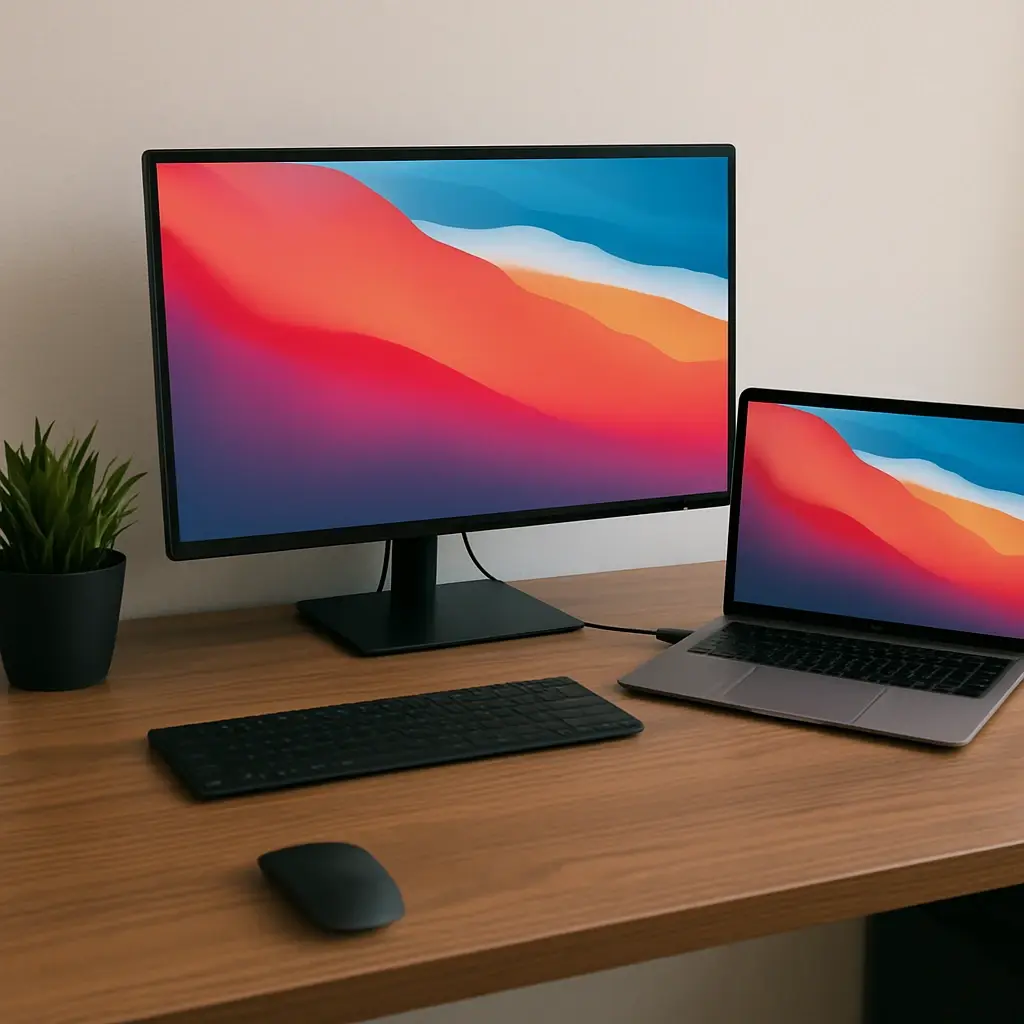
Whether you are a graphic designer color-grading your latest project, a software engineer juggling multiple code editors, or a student trying to manage research and writing simultaneously, working on a single laptop screen can feel incredibly restrictive. Pairing your Mac and monitor together is the ultimate productivity hack, instantly doubling your digital workspace and saving you from endless window-switching.
However, the Apple ecosystem has its own unique set of rules, hardware capabilities, and software quirks. Navigating cables, resolutions, and display limits can be confusing. This comprehensive guide will walk you through exactly how to bridge the gap between your Mac and an external display, ensuring a crisp, lag-free, and expansive desktop experience.
Understanding Your Mac's Hardware Capabilities
Before you buy a new screen or start plugging in cables, it is crucial to understand what your specific Mac model can handle. Apple’s transition to its own silicon (M1, M2, and M3 chips) brought incredible performance but also introduced specific rules for external displays.
Knowing Your Display Limits
If you are connecting MacBook Pro to external display setups, your options depend heavily on the processor inside your machine.
- Base Apple Silicon (M1, M2, M3): Standard MacBook Air and base MacBook Pro models natively support only one external display.
- Pro and Max Chips: If you have an M1/M2/M3 Pro or Max chip, your MacBook Pro external display limits are much higher, supporting up to two, three, or even four external monitors depending on the exact configuration.
- Mac Studio and Mac Pro: These desktop powerhouses can handle up to eight displays depending on the specific model and port usage.
Choosing the Right Cables and Ports
The cable you use dictates the resolution and refresh rate you will achieve. When evaluating Thunderbolt 4 vs USB-C for video, keep in mind that while both use the same physical oval-shaped connector, they are not identical. Thunderbolt 4 offers significantly higher data bandwidth (up to 40 Gbps), allowing for dual 4K displays at 60Hz or a single 8K display through a single port. Standard USB-C is often limited to a single 4K display. Always check your cable's specifications—a cheap charging cable will not transmit high-quality video.
How to Connect Mac to Monitor
Once you know your hardware limits, it is time to physically connect Mac to display. The process is straightforward if you have the right gear.
- Direct Connection: The easiest way to connect is using a direct Thunderbolt or USB-C to USB-C cable, provided your monitor supports it. This is highly recommended because a single cable can transmit video, and audio, and charge your MacBook simultaneously.
- Using Adapters: If your monitor only has an HDMI or DisplayPort connection, you will need a dongle. Investing in a high-quality USB-C hub with HDMI for Mac is a smart choice. These hubs not only provide a reliable video connection but also add extra USB-A ports, SD card readers, and Ethernet connections.
- Power On: Plug your cable into the Mac and the monitor. Ensure the monitor is powered on and set to the correct input source. Your Mac screen should flash momentarily, and the monitor will light up.
Configuring Your Dual Screen Display Mac Setup
Once the physical connection is established, you need to tell your operating system how to handle the extra screen real estate.
How to Extend Screen on Mac
By default, your Mac might just mirror your laptop screen, showing the exact same image on both displays. To maximize your workspace, you need to initiate a mac extend display setup.
- Open System Settings (or System Preferences on older macOS versions).
- Scroll down and click on Displays.
- You will see an illustration of your screens. Click the drop-down menu next to your external monitor and select Use as: Extended display.
- This is how to extend screen on mac seamlessly, allowing you to drag windows from one screen to the other.
Arranging Your Layout
Within the macOS display settings for secondary monitor configurations, you can click and drag the digital representations of your screens to match their physical layout on your desk. If your monitor is positioned to the left of your MacBook, drag the monitor icon to the left. This ensures your mouse cursor flows naturally across the physical gap between the screens.
Using MacBook in Clamshell Mode
Many users prefer to use their external monitor exclusively while keeping their laptop tucked away. Using MacBook in clamshell mode (closed-display mode) is incredibly popular for clean, minimalist desk setups.
To achieve this, you need three things:
- Your Mac must be connected to a power source (either via a power adapter or a monitor that provides power delivery).
- An external keyboard must be connected (Bluetooth or USB).
- An external mouse or trackpad must be connected.
Once these are active, simply close your MacBook lid. The external screen might flicker for a second, but it will wake up as your primary, single display.
Advanced Multi-Monitor Solutions
What if your workflow demands more than one external screen, but your Mac model restricts you? There are a few workarounds and advanced setups available.
Bypassing Native Limits
If you own a base M1, M2, or M3 MacBook Air or Pro and want a dual screen display mac setup, you are not out of luck. You can use DisplayLink adapters for multiple monitors. DisplayLink is a software-and-hardware combo that compresses video data and sends it over standard USB protocols. By installing the DisplayLink Manager software and using a certified DisplayLink dock, you can easily run two or even three external monitors from a base Apple Silicon Mac.
Daisy Chaining
Daisy chaining monitors with Mac computers can help reduce cable clutter. This involves connecting your Mac to Monitor A, and then connecting Monitor A to Monitor B. Keep in mind that macOS only supports daisy chaining via Thunderbolt, not via standard DisplayPort MST (Multi-Stream Transport). If you attempt to daisy chain using standard DisplayPort, macOS will just mirror the same image on both external monitors.
Choosing the Perfect Mac External Display
Apple’s operating system handles graphics differently than Windows, making monitor selection incredibly important. Not all screens look good connected to a Mac.
The Importance of Resolution and Scaling
If you have ever searched "why is my external monitor blurry Mac", the culprit is almost always pixel density and scaling. macOS is designed for retina displays, which have a pixel density of around 220 pixels per inch (PPI).
When you connect a standard 27-inch 1080p or 1440p monitor (which hovers around 90-110 PPI), macOS struggles to render text sharply. To achieve crisp text, you need to utilize HiDPI scaling for external displays. This requires a monitor with a high enough resolution (like 4K or 5K) so macOS can render the interface at double the resolution and scale it down, resulting in incredibly sharp text.
Color Accuracy
For creatives, color is paramount. Apple’s built-in screens are known for their stunning accuracy. To match this, look for P3 wide color gamut displays. The DCI-P3 color space offers a 25% wider range of colors than standard sRGB, ensuring the vibrant reds and deep greens you see on your MacBook look exactly the same on your larger screen.
Top Monitor Recommendations
- The Ultimate Companion: When comparing the Studio Display vs third party monitors, the Apple Studio Display wins for seamless integration. It features a perfect 5K resolution (ideal for macOS scaling), a built-in webcam, fantastic speakers, and a true P3 color gamut. However, it comes with a premium price tag.
- The Budget-Friendly Choice: If you are looking for the best 4K monitor for MacBook Air without breaking the bank, Dell’s UltraSharp series (like the U2723QE) or LG’s UltraFine series are phenomenal alternatives. They offer excellent 4K resolution, USB-C power delivery, and great color accuracy.
- The Productivity Powerhouse: For video editors and financial analysts, ultra-wide screens are a game-changer. The best ultrawide monitor for Mac setups usually features a Thunderbolt connection and at least a 1440p vertical resolution, such as the LG 38WN95C-W, which provides massive horizontal space without a dual-monitor bezel interrupting your view.
Troubleshooting Common Display Issues
Even with the perfect mac and monitor combination, technical hiccups can occur. Here is how to fix the most common annoyances.
How to Fix Mac Screen Flickering
A flickering external monitor is incredibly frustrating and can induce eye strain. If you are experiencing this, try the following steps:
- Check the Cable: The number one cause of flickering is a cheap or damaged cable. Ensure you are using a high-quality, VESA-certified DisplayPort, HDMI, or Thunderbolt cable.
- Adjust the Refresh Rate: Sometimes, the Mac pushes a refresh rate the monitor struggles to maintain. Go to System Settings > Displays, select your monitor, and try lowering the refresh rate from 60Hz to 50Hz, or vice versa.
- Update macOS: Apple frequently releases patches that resolve external display handshaking issues.
- Toggle True Tone: Occasionally, Apple’s True Tone feature (which adjusts the color temperature based on ambient light) can conflict with third-party monitors. Try turning it off in your display settings.
Dealing with Blurry Text
As mentioned earlier, if your screen looks fuzzy, you need to adjust your scaling. Go to System Settings > Displays. Instead of selecting "Default," choose one of the "Scaled" options. Hovering over the options will show you the exact resolution output. Selecting a "Larger Text" or "More Space" option that utilizes HiDPI will force macOS to render the screen clearly. If your monitor is below 4K resolution, you may need a third-party app like BetterDisplay to force HiDPI scaling options on unsupported screens.
Conclusion
Creating the perfect mac and monitor setup is one of the best investments you can make for your personal productivity and workflow ergonomics. While Apple’s unique hardware limits and software scaling rules require a bit of forethought, the result is well worth the effort.
By understanding your specific MacBook's capabilities, investing in the right high-bandwidth cables, and choosing a monitor that complements macOS's high-resolution demands, you can create a seamless digital environment. Whether you opt for a stunning 5K Apple Studio display, leverage DisplayLink to bypass native limitations, or simply connect a reliable 4K panel via a USB-C hub, extending your Mac's display will transform the way you work, create, and browse every single day.