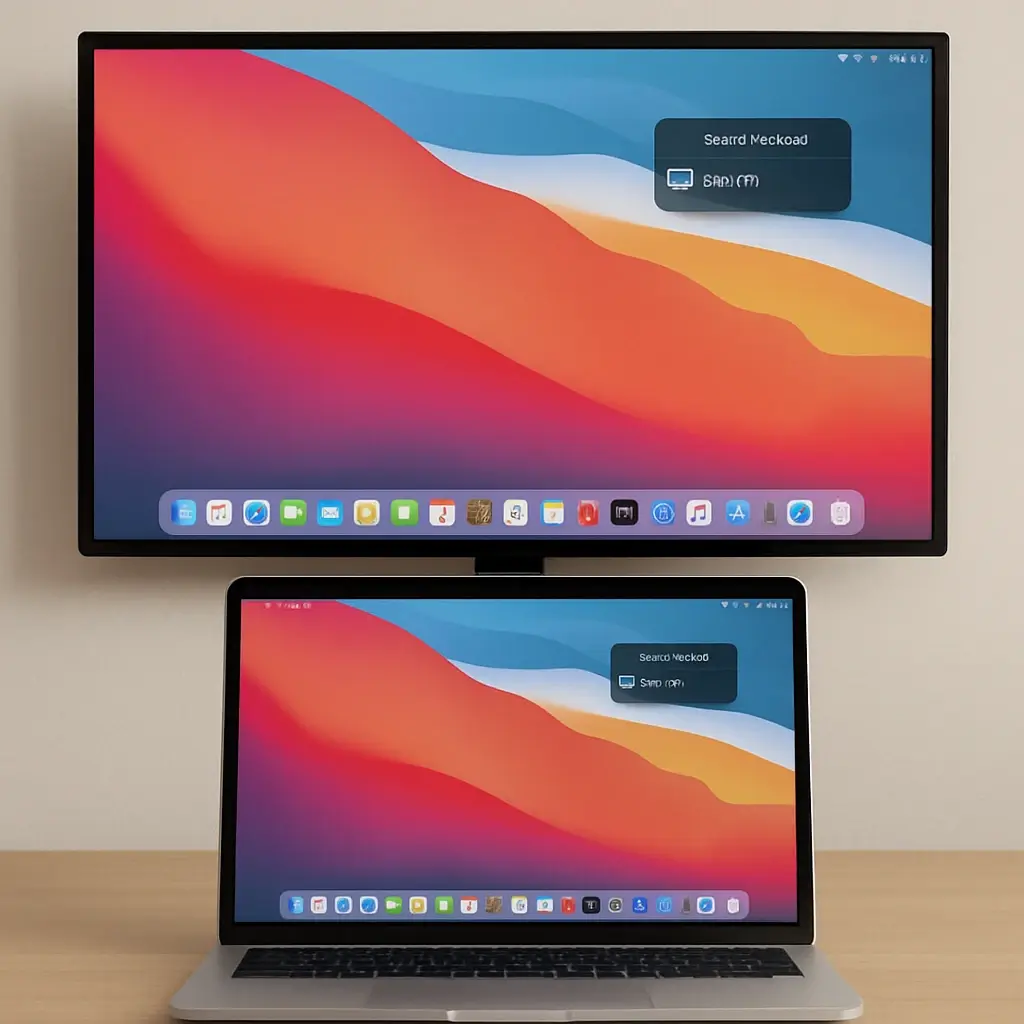
Screen mirroring on a Mac is a powerful feature. It lets you display your Mac's screen on a TV. This can enhance your viewing experience.
Whether you're streaming a movie or sharing a presentation, screen mirroring is useful. It transforms your TV into a larger display. This guide will show you how to do it.
We'll cover various methods, including AirPlay and HDMI cables. You'll also learn about third-party apps. These options ensure compatibility with different TVs.
Troubleshooting tips will help resolve common issues. You'll also find advice for optimizing your setup. This ensures a smooth and enjoyable experience.
By the end, you'll know how to screen mirror on Mac. You'll be ready to enjoy your content on a bigger screen.
What Is Screen Mirroring on Mac?
Screen mirroring allows you to show your Mac's display on another screen, like a TV. It's a useful tool for sharing content with more people. Whether it's for presentations or entertainment, mirroring extends what you see.
This feature is handy for streaming videos or conducting online classes. By transmitting your Mac's screen to a TV, you create a larger viewing platform. It's particularly beneficial in group settings.
Here are some common uses for screen mirroring:
- Presentations and meetings
- Streaming movies and videos
- Gaming on a bigger screen
- Sharing photos and slideshows
- Remote learning and teaching
To start, you need a Mac and a compatible display device, such as a modern smart TV. Consistent updates ensure smooth compatibility and functionality.
Requirements for Screen Mirroring Mac to TV
Before screen mirroring, ensure your devices meet the essential requirements. Compatibility is key for a smooth setup. Both your Mac and TV need to support certain technologies.
Your Mac should be running a version of macOS that supports AirPlay. Check that your TV is AirPlay-enabled, or consider using an Apple TV for compatibility. Moreover, both devices need to connect to the same Wi-Fi network for wireless mirroring.
Here are the fundamental requirements:
- Mac with AirPlay support
- TV with AirPlay or HDMI input
- Same Wi-Fi network for both devices
- HDMI adapter if using a cable
Being prepared with these basics can avoid setup hiccups. Verify all compatibility and connection settings beforehand.
Method 1: How to Screen Mirror on Mac Using AirPlay
AirPlay is a straightforward way to mirror your Mac's screen. Begin by ensuring your Mac and TV are on the same Wi-Fi network. Without this crucial step, AirPlay won't connect.
To start, locate the AirPlay icon in your Mac's menu bar. It resembles a rectangle with an arrow pointing upward. Click this icon to reveal available devices.
Steps to Screen Mirror Using AirPlay:
- Click the AirPlay icon in the menu bar.
- Choose your TV from the list of devices.
- Your Mac's display should now appear on the TV.
It's that simple! However, not all TVs support AirPlay. In such cases, an Apple TV device can bridge the gap between your Mac and TV.
Troubleshooting Tips:
- Ensure AirPlay is enabled in your TV settings.
- Restart devices if the connection fails.
- Check for any AirPlay updates.
Should you need to fine-tune the settings, head to System Preferences. Here, you can manage display resolutions and optimize for the best viewing experience.
Remember, the smoothness of AirPlay depends on your network's strength. Ensure a robust Wi-Fi connection to minimize lag and disruptions.
Method 2: Mirror Mac to TV with an HDMI Cable
Using an HDMI cable offers a reliable way to mirror your Mac's screen. This method is great for avoiding wireless network issues and offers a lag-free experience. Plus, it's quite simple to set up.
Begin by checking your Mac for an HDMI port. Not all Macs have one, so you might need a Thunderbolt to HDMI adapter. This is crucial for connecting the devices together.
Steps to Mirror with HDMI:
- Connect the HDMI cable between your Mac and TV.
- Use an adapter if your Mac doesn't have an HDMI port.
- Change the TV's input source to the correct HDMI port.
Once connected, your Mac's display should appear on the TV screen. If it doesn't, check your TV's settings to ensure the correct input is selected. Adjust the display settings on your Mac for the best resolution.
Using a wired connection also allows you to adjust sound settings. In System Preferences, set your Mac to route audio through the TV for enhanced sound quality.
This method is excellent for presentations or movie nights, offering stable and high-quality display performance without network dependence.
Method 3: Screen Mirroring MacBook to Samsung TV and Other Smart TVs
Screen mirroring your MacBook to a Samsung TV or other smart TVs is both easy and convenient. Many smart TVs, including Samsung models, come with built-in AirPlay support. This feature simplifies the process, provided both devices are on the same Wi-Fi network.
To begin, ensure your Samsung TV supports AirPlay. For newer models, this is typically a built-in feature. If available, navigate to your TV’s settings menu to enable AirPlay. Check whether it's turned on and ready to receive content.
Steps to Mirror Mac to Smart TVs:
- Turn on AirPlay in your TV’s settings.
- Connect both MacBook and TV to the same Wi-Fi network.
- Use the AirPlay icon on your MacBook to select the TV.
After selecting the TV from the AirPlay menu, your MacBook's screen should appear on your TV almost instantly. If your TV doesn’t show up on the list, ensure that the network settings are correct.
This method is perfect for wireless presentations or simply enjoying your favorite streaming service on a larger screen without extra hardware. Ensure a strong internet connection to prevent lag and display issues.
Method 4: Using Third-Party Apps to Cast MacBook to TV
Sometimes, using AirPlay isn't an option. This can happen if your TV doesn't support it or if you're looking for other features. In such cases, third-party apps are helpful.
Several applications can facilitate screen mirroring from a Mac to a TV. Apps like Reflector, AirServer, and JustStream are popular. These apps provide flexibility and often include additional features.
Recommended Third-Party Apps:
- Reflector: Supports various devices and offers high-quality mirroring.
- AirServer: Offers universal compatibility with many TVs.
- JustStream: Easy-to-use interface, perfect for quick setup.
When using these apps, first ensure that both your MacBook and TV are on the same network. Then, follow the app instructions to begin mirroring. These apps typically require installation but are straightforward to set up, making them a solid alternative to AirPlay for screen mirroring.
Adjusting Display and Sound Settings for the Best Experience
Optimizing your display and sound settings can greatly enhance screen mirroring. Start by adjusting the resolution on your Mac. This ensures images look crisp on your TV.
Navigate to the "System Preferences" on your Mac. Click "Displays" to access the settings. From there, select the desired resolution to match your TV's capabilities.
Key Adjustments:
- Resolution: Choose a resolution that complements your TV.
- Arrangement: Organize displays if using multiple screens.
- Sound: Route audio to your TV for immersive sound.
For sound, visit the "Sound" settings in "System Preferences." Choose your TV as the output device for synchronized audio and visuals. These adjustments will ensure seamless integration and an enhanced viewing experience.
Troubleshooting Common Screen Mirroring Issues
Screen mirroring can sometimes present challenges. Connectivity problems are common but often resolved with simple steps. Begin by ensuring your Mac and TV are on the same network.
If you can't see your TV in the AirPlay list, try restarting both devices. This simple action resolves many minor issues. Verify that screen mirroring is enabled in your TV settings as well.
Common Issues and Solutions:
- No Sound: Check your audio output settings.
- Weak Connection: Move devices closer for a stronger signal.
For HDMI connections, ensure your adapters and cables are functional. Swap them out to test if the issue persists. An updated operating system on your Mac and TV enhances compatibility, reducing problems.
Additional Tips:
- Firmware: Keep TV and Mac firmware current.
- Firewalls: Check to see if your Mac's firewall is blocking access.
If issues persist, consult online forums or customer support. With the right steps, you can overcome most screen mirroring issues, ensuring a smooth experience.
Tips for a Smooth Screen Mirroring Experience
Screen mirroring can be seamless with a bit of preparation. Always keep your Mac and TV updated for the best compatibility. An updated system often resolves unexpected glitches.
Ensure a stable and strong Wi-Fi connection. This is crucial for reducing lag and improving the quality of mirrored content. When possible, position your router closer to your devices.
Additional Tips:
- Battery: Charge your Mac before starting.
- Input Source: Confirm the TV is set to the right input.
- Signal Interference: Reduce nearby devices that can interfere with your Wi-Fi.
By following these tips, you can enhance your screen mirroring experience. Whether for presentations or streaming, a smooth setup makes a difference.
Frequently Asked Questions (FAQ)
Screen mirroring can seem complex at first. Here are answers to some common questions.
Q: Can I mirror my Mac to any TV?
A: Most modern TVs with HDMI or smart capabilities support screen mirroring. Confirm the model specifics.
Q: Do I need an internet connection for HDMI mirroring?
A: No, HDMI connections are wired. Wi-Fi is not required in this case.
Q: Why is there no sound from my TV?
A: Check if your Mac’s sound settings are routing audio to the TV.
Common Inquiries:
- AirPlay supported TVs: Most newer models.
- Third-party apps compatibility: Varied with different TV brands.
- Lag issues: Often due to weak Wi-Fi.
These FAQs should help clarify some confusion about screen mirroring on Macs. Always refer to device manuals for detailed support.
Conclusion
Screen mirroring on a Mac opens up many possibilities. Whether for work or play, it's a convenient feature.
By understanding the different methods, you can easily cast your Mac's display to a TV. From using AirPlay to third-party apps, each method offers unique benefits.
With the right setup, screen mirroring enhances your Mac's versatility. Now you can enjoy your media on the big screen with ease and clarity. Remember to troubleshoot any issues for a seamless experience.