Installing Windows on a Mac might seem daunting, but it's quite manageable. Many Mac users need Windows for specific applications or games.
This guide will walk you through the process step-by-step. You'll learn how to use Apple's Boot Camp Assistant to install Windows.
Boot Camp allows you to run both macOS and Windows on your Mac. This dual-boot setup offers flexibility and access to Windows-exclusive software.
Before starting, ensure your Mac has enough storage space. You'll also need a valid Windows license key.
We'll cover everything from preparing your Mac to switching between operating systems. By the end, you'll have Windows running smoothly on your Mac.
Let's dive into the details and get Windows up and running on your Mac.
Why Install Windows on Your Mac?
Many Mac users choose to install Windows for specific reasons. Windows allows access to software not available on macOS.
Some applications and games are designed exclusively for Windows. Running Windows on your Mac can improve productivity and versatility.
Here's why you might consider Windows on your Mac:
- Access to Windows-only software
- Better gaming options
- Compatibility with business applications
Choosing to install Windows unlocks new possibilities for users needing the best of both worlds. Whether for work or play, Windows offers unique capabilities.
Understanding Your Options: Boot Camp vs. Virtualization
When you want Windows on your Mac, you have two main choices. Boot Camp and virtualization software are popular options.
Boot Camp is a built-in utility on macOS. It allows you to install Windows on a separate partition.
Virtualization software, like Parallels Desktop or VMware Fusion, lets you run Windows inside macOS. This method doesn't require rebooting your Mac.
Here's a quick comparison:
- Boot Camp: Full Windows performance, separate boot
- Virtualization: Easy switching, uses more resources
With Boot Camp, Windows runs with full access to hardware. This provides better performance, especially for intensive applications.
Virtualization offers convenience and multitasking. You can use macOS and Windows side by side.
Preparing Your Mac for Windows Installation
Before installing Windows on your Mac, ensure your device is ready. Preparation helps avoid issues during installation.
Start by checking your Mac's compatibility with Windows. Apple's website provides a list of supported Mac models.
Next, back up your data. Partitioning your hard drive may risk data loss if something goes wrong.
Verify that your Mac has enough storage space. Windows needs a minimum of 64GB, but more is better.
Here's what you need:
- A backup of your important files
- At least 64GB of available storage
- A power source for your Mac
- A reliable internet connection
Make sure your Mac's firmware is current. This will help avoid compatibility problems during installation.
Download the Windows ISO file from Microsoft. You also need a valid Windows license key to activate it.
by Rahadiansyah (https://unsplash.com/@rahadiansyah)
How to Install Windows on Mac Using Boot Camp Assistant
Installing Windows on your Mac is straightforward with Boot Camp Assistant. Follow these steps for a successful installation.
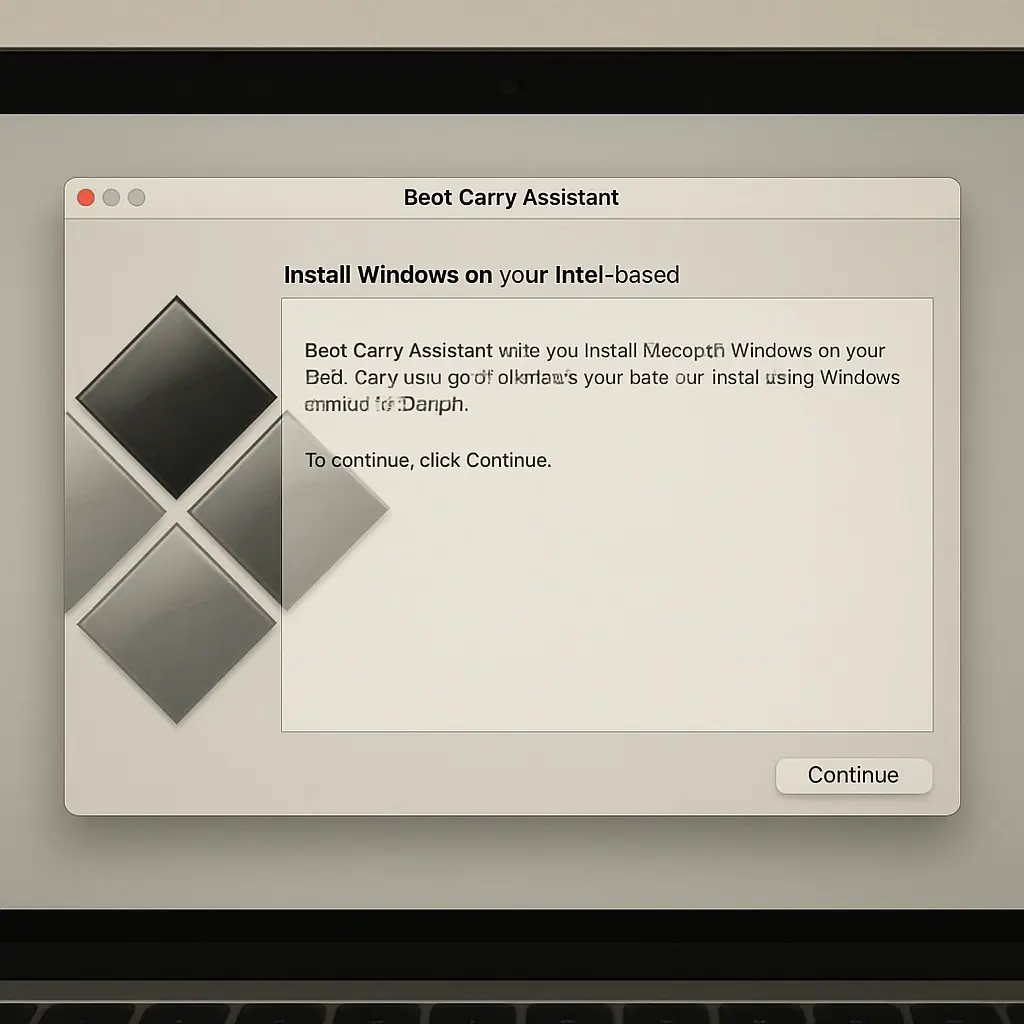
First, open Boot Camp Assistant, found in the Utilities folder within Applications. This tool will guide you through the installation.
You'll need the Windows ISO file you downloaded earlier. Boot Camp will use this file to install Windows.
Upon launching Boot Camp, click "Continue" to proceed. You'll then see the option to select your Windows ISO.
Next, choose the size for your Windows partition. It's crucial to allocate enough space for both Windows and future files.
Consider your needs before setting the partition size:
- 64GB for minimal use
- 128GB or more for regular tasks
- Larger space for gaming or software development
Once satisfied with your partition size, click "Install." Your Mac will create the partition and restart.
During the restart, your Mac will boot into Windows setup. Follow the on-screen prompts to install Windows.
Here’s what to expect during setup:
- Language and region selection
- Inputting your Windows product key
- Choosing the partition labeled "BOOTCAMP"
Select the "BOOTCAMP" partition and click "Format" if prompted. This ensures Windows installs correctly.
Continue with the installation by following the prompts. Your Mac will restart several times during this process.
After installation, Windows will launch on your Mac. The Boot Camp installer will appear to install necessary drivers.
by TheRegisti (https://unsplash.com/@theregisti)
Make sure to complete this step, as these drivers ensure proper hardware functionality. You’ll have a seamless experience post-installation.
by Planet Volumes (https://unsplash.com/@planetvolumes)
Restart your Mac again after driver installation. Now, you can use Windows on your Mac seamlessly.
Setting Up Windows After Installation
Once Windows is installed on your Mac, the setup process begins. You'll need to personalize your Windows environment.
Start by connecting to your Wi-Fi network. This step is essential for activating Windows and receiving updates.
Next, set up your user account. Choose a username and password to secure your Windows system.
You'll also encounter additional settings like:
- Privacy preferences
- System updates
- Time zone configuration
Take a moment to adjust these settings to your liking. Personalizing your Windows setup enhances user experience.
Don't forget to install essential software for your daily tasks. Consider antivirus software to protect your system from malware.
Finally, explore the Boot Camp Control Panel. This tool helps you manage hardware settings specific to your Mac.
by Fujiphilm (https://unsplash.com/@fujiphilm)
With these steps, Windows is now functional and ready to use on your Mac.
How to Switch Between macOS and Windows
Switching between macOS and Windows is simple with Boot Camp. You don't need to run complex commands.
To switch to Windows from macOS, restart your Mac and hold the Option key. This action prompts the startup menu.
Choose your desired operating system from the menu. Your Mac will then boot into the selected system.
Remember these steps:
- Restart your Mac.
- Hold the Option key.
- Select the desired operating system.
by Vova Kondriianenko (https://unsplash.com/@vodriian)
This process allows flexibility in choosing the system that fits your current needs. Whether for work or play, switching is easy and efficient.
Alternative Methods: Using Virtualization Software
Virtualization is another way to run Windows on a Mac. This method uses software to create a virtual Windows environment.
Unlike Boot Camp, virtualization allows using both systems simultaneously. This can be convenient for quick Windows access.
Some popular virtualization tools include Parallels Desktop and VMware Fusion. Both provide a seamless user experience.
Virtualization may require more RAM and processing power. It's essential to check your Mac's specs before proceeding.
Key points about virtualization:
- No reboot needed to switch systems.
- Simultaneous use of macOS and Windows.
- Suitable for less resource-intensive tasks.
by orbtal media (https://unsplash.com/@orbtalmedia)
This approach is ideal for occasional Windows tasks. However, expect a potential impact on performance during heavy use. If system resources are limited, consider upgrading hardware for smoother operation.
Troubleshooting Common Issues
Encountering issues when installing Windows on Mac is not uncommon. However, most can be resolved with a few steps.
Some problems include installation freezes and driver errors. It's crucial to know where to start troubleshooting.
Begin by checking if your Mac's firmware and software are updated. Compatibility issues often stem from outdated systems.
Here are common issues and quick solutions:
- Boot Camp errors: Restart your Mac and try again.
- Network issues: Check your Wi-Fi settings or use Ethernet.
- Driver problems: Ensure Boot Camp drivers are properly installed.
Always backup data before attempting major changes. For persistent issues, Apple's support can provide further assistance. Joining community forums may also offer valuable insights and solutions from experienced users.
Tips for Managing Files and Performance
When running Windows on your Mac, managing files wisely is key. File organization ensures smooth operation and prevents clutter.
Create clear directories for both macOS and Windows files. Utilize external drives if space becomes an issue.
Maintaining peak performance is also crucial. Here are a few tips to keep your system running efficiently:
- Regularly update both operating systems.
- Close unused applications to free up memory.
- Monitor disk space and optimize storage settings.
By following these guidelines, you can enhance your dual-boot experience while avoiding common pitfalls.
Frequently Asked Questions About Windows on Mac
Many Mac users have questions about integrating Windows on their systems. Here, we address some common concerns.
One frequent question is about system compatibility. Most modern Macs can handle Windows, but checking hardware specs is wise.
People also wonder about data safety during installation. Back up all important files before proceeding to safeguard your data.
Here are some additional FAQs:
- Do I need a Windows license key? Yes, a valid key is required.
- Can I uninstall Windows later? Yes, Boot Camp allows easy removal.
- Will running Windows affect my Mac’s performance? Only if you install too many apps or have limited storage.
Addressing these questions can ease the transition and enhance your understanding of running Windows on a Mac.
Conclusion: Is Running Windows on Mac Right for You?
Deciding to run Windows on your Mac depends on your needs. If you frequently use Windows-exclusive software, dual-booting might be ideal. This setup offers robust performance and full access to Windows applications.
However, if you only occasionally need Windows, virtualization may suffice. It allows running Windows within macOS and provides flexibility. Consider your usage patterns, system capabilities, and technical comfort level before making a choice. Each method offers unique benefits, so assess carefully what best aligns with your computing habits and requirements.