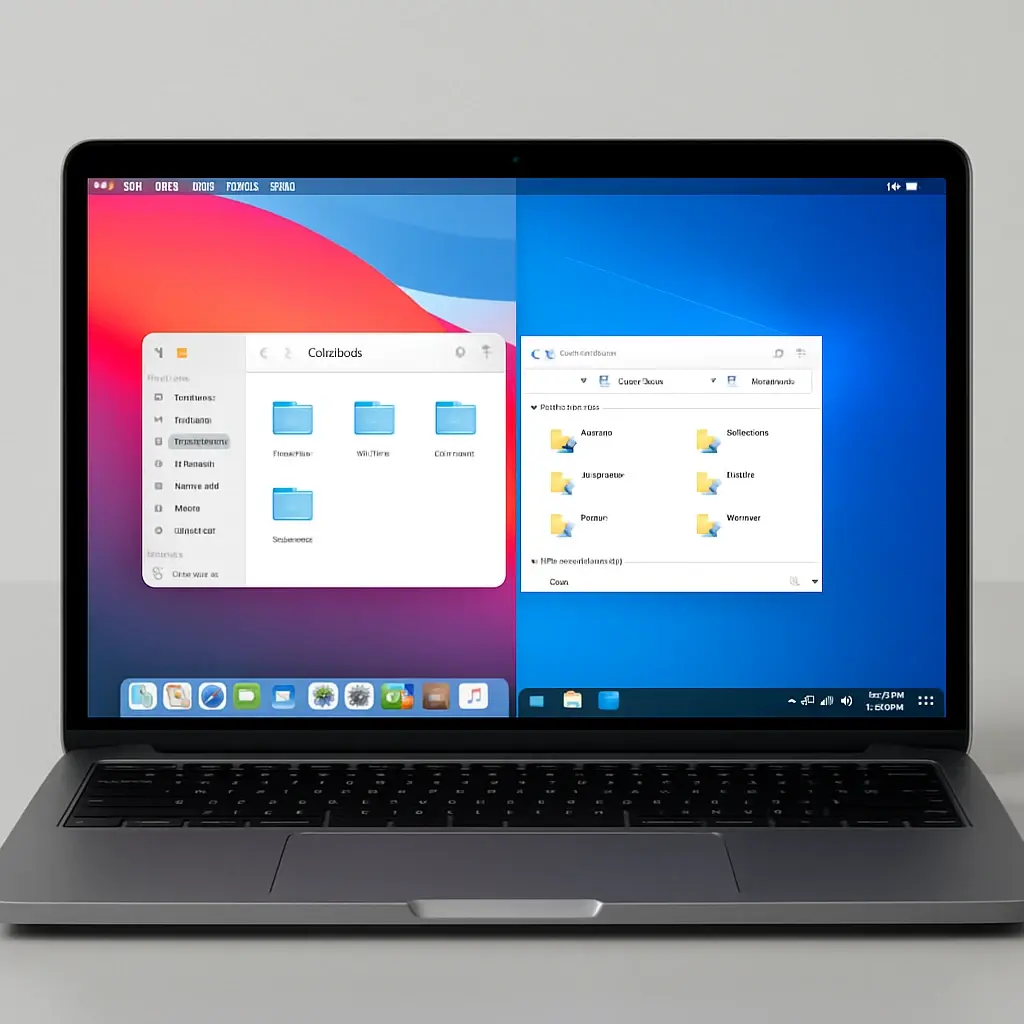
Mac computers are renowned for their sleek design, robust security, and the seamless macOS experience. However, despite the growing library of native macOS applications, there are still countless moments when you might find yourself needing PC-exclusive software. Whether it is a legacy business application, a niche piece of engineering software, or the latest AAA game, figuring out how to run pc software on Mac is a common hurdle.
Fortunately, the days of keeping a second Windows laptop around are over. With the right tools, you can run everything from Microsoft Access to Steam games directly from your Apple desktop.
In this comprehensive guide, we will explore the top solutions available today. From finding the perfect windows emulator for Mac to understanding the nuances of compatibility layers, here is everything you need to know about bridging the gap between macOS and Windows.
Understanding Emulation vs. Virtualization vs. Translation
If you have ever asked yourself, "how can I run a windows program on a Mac?", you first need to understand that not all solutions work the same way. The software you choose depends heavily on what you need to run and the specific Mac hardware you own.
- Virtual Machines (VMs): These create a complete, isolated Windows operating system within macOS. You get the full Windows experience, allowing you to virtualize Windows without rebooting your computer.
- Compatibility Layers: Instead of running a full Windows OS, these tools translate Windows API calls into macOS equivalents on the fly. This is ideal if you just want to install windows app on Mac without the overhead of a full operating system.
- Remote Desktop: Accessing a dedicated Windows PC remotely via an internet connection.
Let's dive into the best tools available for each method.
Top Virtual Machines for macOS
Virtual machines are the most reliable way to run Windows software. They offer high compatibility and integrate beautifully with macOS.
1. Parallels Desktop: The Premium Standard
When looking for the best virtual machine for MacBook Pro or any modern Apple computer, Parallels Desktop consistently ranks at the top. It is designed with user-friendliness in mind, offering seamless integration. You can drag and drop files between macOS and Windows, and even place Windows applications directly on your Mac dock.
For users transitioning to the latest hardware, Parallels handles installing Windows 11 on M3 chip architectures effortlessly. It automatically downloads the correct ARM-based version of Windows and sets it up with just a few clicks.
Key Benefits:
- Coherence Mode: Hides the Windows desktop, making PC apps look like native Mac apps.
- Performance: Excellent at optimizing Windows performance on macOS, dynamically allocating RAM and CPU cores as needed.
- Gaming/3D: Supports DirectX 11, making it capable of running many mid-tier games and 3D modeling software.
2. VMware Fusion: The Power User's Choice
VMware has long been Parallels' main rival. When comparing Parallels Desktop vs VMware Fusion, the biggest differentiator used to be price. Recently, VMware made Fusion Player free for personal use, making it an incredibly attractive option for students and home users.
While Parallels offers a slightly more "Mac-like" and automated setup, VMware Fusion is highly customizable and deeply trusted by IT professionals. It allows you to run Windows software on Apple Silicon smoothly, though its 3D hardware acceleration for gaming lags slightly behind Parallels.
3. UTM: The Free, Open-Source Alternative
UTM is an open-source virtualization host for iOS and macOS, based on QEMU. It is highly versatile but comes with a steeper learning curve. If you want to use this software, it is highly recommended to look up a UTM virtual machine configuration guide, as setting up the correct display drivers and network bridges requires manual input.
However, UTM is completely free and allows for both virtualization (running ARM Windows on Apple Silicon) and emulation (running legacy x86 Windows on Apple Silicon, albeit slowly).
Compatibility Layers: No Windows OS Required
If you do not want to dedicate 20GB to 50GB of your hard drive to a full Windows installation, compatibility layers are the way to go. They answer the question of how to open exe files on macOS directly.
1. CrossOver by CodeWeavers
CrossOver is a commercial software built on top of Wine, an open-source project. This Wine-based translation layer for Mac translates Windows commands into Mac commands instantly. You do not need to buy a Windows license to use it.
CrossOver is particularly famous for its CrossOver Mac gaming performance. With continuous updates, it now supports DirectX 12, allowing Mac users to play demanding titles like Cyberpunk 2077 or Elden Ring directly on macOS.
Pros of CrossOver:
- No Windows OS required (saves massive disk space).
- Extremely fast startup for applications.
- 1-click installation scripts for popular software.
2. Whisky: The Apple Silicon Gaming Hero
Built on Apple’s Game Porting Toolkit and Wine, Whisky provides an intuitive, modern interface for running Windows games. It serves as an incredibly powerful ARM-based Windows compatibility layer specifically tailored for Apple's M-series chips.
If you are putting together a Whiskey for Mac gaming setup, you will be thrilled by the performance. Because it leverages Apple's own Metal translation technologies, games run with surprisingly high frame rates. It is an excellent, free way to run windows apps on Mac effortlessly, particularly if those apps are games.
The Remote Alternative: Microsoft Remote Desktop
Sometimes, your Mac simply doesn't have the processing power to run heavy 3D rendering or massive database queries via emulation. In corporate environments, the easiest way to run Windows apps is simply to connect to a Windows machine.
By using Microsoft Remote Desktop for Mac, you can connect to a PC located in your office or a cloud-hosted Windows machine (like Windows 365). The heavy lifting is done by the remote PC, while your Mac simply acts as the monitor and keyboard. This uses minimal battery and storage space.
Navigating Modern Hardware: Apple Silicon vs. Intel
The shift from Intel processors to Apple Silicon (M1, M2, M3, and M4 chips) fundamentally changed how Macs handle Windows software.
The End of Boot Camp
On older Intel Macs, users relied on Boot Camp. When discussing Boot Camp Assistant vs virtualization, Boot Camp offered 100% native performance because it dual-booted the Mac directly into Windows.
However, Boot Camp is not available on Apple Silicon. Modern Macs use ARM architecture, while traditional Windows software uses x86 architecture. Therefore, running windows apps on silicon Mac requires either an ARM-based version of Windows 11 (via Parallels or VMware) or a translation layer like CrossOver/Whisky.
macOS Sequoia and Beyond
Apple continues to improve background translation with Rosetta 2. If you are running Windows programs on macOS Sequoia, you will notice that virtualization software is faster and more stable than ever. Apple's hypervisor framework, built deeply into macOS Sequoia, allows tools like Parallels and VMware to access CPU and GPU resources with incredibly low latency.
Quick Guide: How to Install Windows Programs on Mac
If you are overwhelmed by the options, here is a practical, step-by-step breakdown of how to install windows programs on Mac depending on the software you choose:
Scenario A: Using a Virtual Machine (e.g., Parallels)
- Download and Install: Grab the Parallels Desktop installer from their official website.
- Install Windows: Open Parallels. It will automatically prompt you to download and install Windows 11. Click "Install."
- Run the OS: Once installed, Windows will open in a window on your Mac.
- Install your App: Open the Edge browser inside Windows, download your .exe file, and install it exactly as you would on a physical PC.
Scenario B: Using a Translation Layer (e.g., CrossOver)
- Download CrossOver: Install the app to your Mac's Application folder.
- Search for your App: Open CrossOver and use the "Install" button. Search their database for the Windows app you want.
- Create a Bottle: CrossOver will create a "Bottle" (a miniature, isolated Windows environment tailored for that specific app).
- Launch: Once the installation finishes, the Windows app will appear in your Mac Launchpad, ready to open without booting up an entire OS.
Which Solution Should You Choose?
Deciding how to run PC software on Mac comes down to your specific use case, technical comfort level, and budget. Here is a quick cheat sheet to help you decide:
- For the Everyday User and Professionals: Choose Parallels Desktop. It is the most seamless, polished experience. If you need MS Office for Windows, PowerBI, or specialized accounting software, this is the safest bet.
- For the Budget-Conscious Techie: Choose VMware Fusion or UTM. They require a bit more setup but provide excellent virtualization without a recurring subscription fee.
- For Gamers: Choose CrossOver or set up Whisky. These tools bypass the heavy resource usage of a full Windows OS, dedicating your Mac's raw graphical power to running the game.
- For Enterprise Workers: Choose Microsoft Remote Desktop. Keep your Mac clean and let your company's servers do the heavy computing.
Final Thoughts
The divide between Mac and PC is narrower than it has ever been. You no longer have to compromise on your choice of hardware just to run a specific piece of software.
Whether you are looking for a reliable windows emulator for Mac to handle daily office tasks, or tweaking a compatibility layer to play the latest PC releases, the macOS ecosystem offers incredibly robust solutions. Assess your needs, pick the right tool from this list, and enjoy the absolute best of both computing worlds.